Sign in as a coach
The invitation email, signing in with a one-time code, creating a password, what a coach sees in the league admin, and two-step verification.
Updated
A league can add a coach to its staff with the Coach role. That gives the coach a sign-in to the league admin with a read-only view: the dashboard with the team, player and game counts, and the games coming up. This guide covers the first sign-in and the account settings.
The invitation
The league adds you under Staff with your email address. You get an email titled You've been added to [league] on HoopKeeper with a Sign in button. The address in the email is the one that works; a different address of yours will not find the league.
Sign in for the first time
- Press Sign in in the email, or open the league's site and add /sign-in to the address.
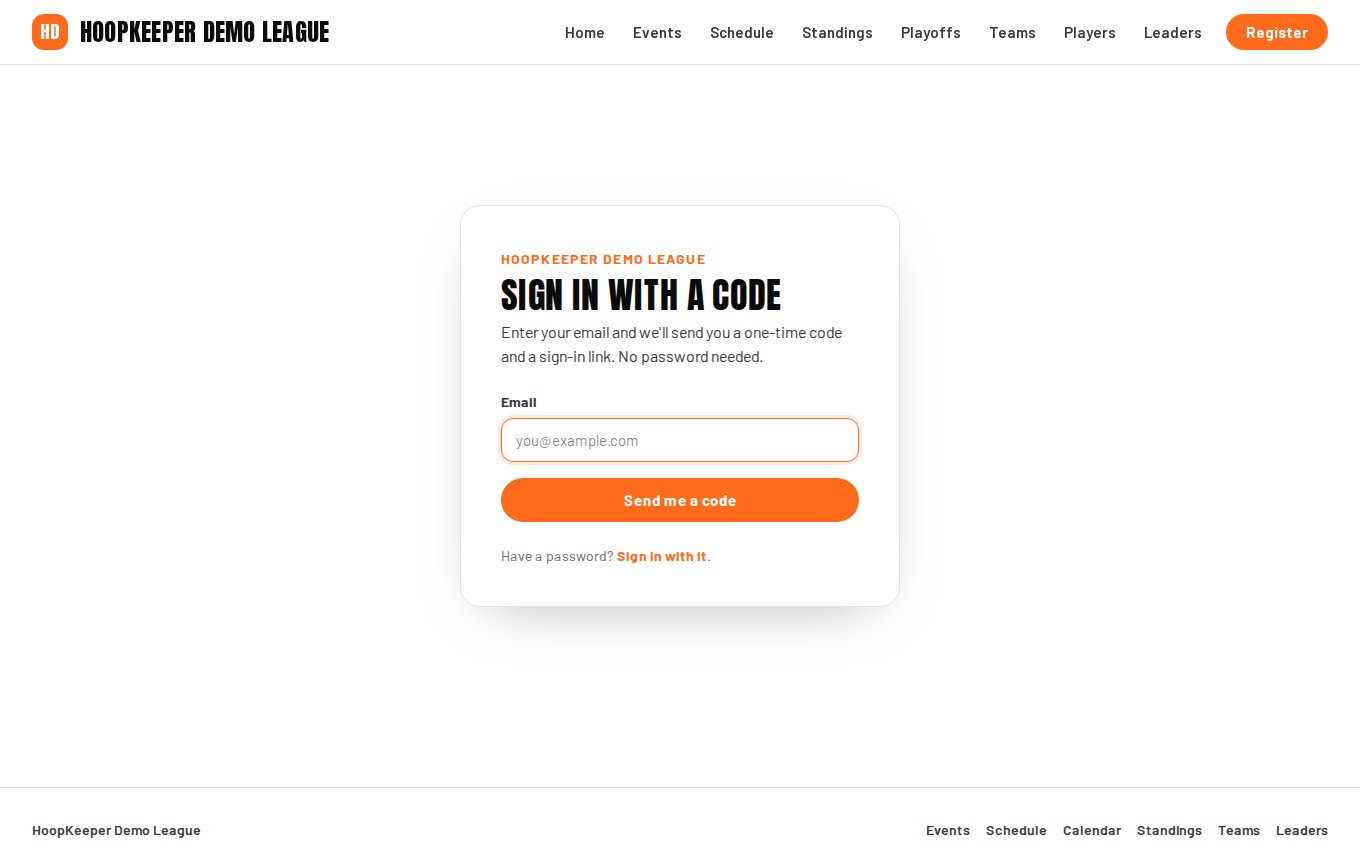
- There is no password yet, so press Email me a one-time code instead.
- Enter your email and press Send me a code. The email carries a six-digit code and a sign-in link; either works. Open the link in the same browser, or type the code on the page.
- HoopKeeper offers to create your password so the next sign-in needs no email. Choose one of at least the length shown, or press *Not now* and keep using codes.
What a coach sees
After signing in you land on the league dashboard: counts of teams, players, finals entered and scores still owed, and the next games with their dates and times. The other admin screens (events, schedule building, registrations, payments, staff, emails) are for owners and admins; the menu shows only what your role can open.
Your account
Account › Security (the Security link in the admin) is where you manage the account:
- Password: create one, or change it. Email codes keep working as a backup even with a password set.
- Forgot your password? on the sign-in page emails a reset link. Open it in the browser you are using and choose a new password.
- Two-step verification: add an authenticator app (Google Authenticator, 1Password, Authy and the like). Press Set up an authenticator app, scan the QR code and enter the six-digit code the app shows. From then on, sign-in asks for a code from the app after the password.
- Backup codes: once two-step verification is on, generate backup codes and keep them somewhere safe. Each code signs you in once if you lose the app.
Some leagues require two-step verification for all staff. If yours does, the admin asks you to set it up before it opens.
Sign out
Sign out is on the Security page. On a shared computer, sign out when you are done.
Questions
Do I need an account to register or pay?
No. Registration and the payment page are public. A coach account is only for leagues that add coaches to their staff list.
I did not get the code email.
Check spam, and make sure you entered the address the league added. The code is for that address only. Ask the league to check the spelling under Staff if it still does not arrive.
Can I see other teams' registrations or payments?
No. A coach sees the dashboard counts and the upcoming games. Registrations, payments, members and emails are for the league's owners and admins.
I lost my authenticator app.
Sign in with one of the backup codes you saved when you set up two-step verification; each works once. If you have none left, ask the league owner to help you reset it.
Try it on a sample league
A seven-day test drive comes with a season already loaded, so you can follow this guide click for click.
Start a free test drive