Divisions, teams and rosters
Add the divisions teams play in, create teams with logos and colours, and build rosters with jersey numbers, positions and headshots.
Updated · In the admin: Divisions, Teams, Players
Teams play in divisions, and players belong to teams. Standings, schedules and leaders are all per division, so set the divisions up before the teams, and the teams before the rosters.
Divisions
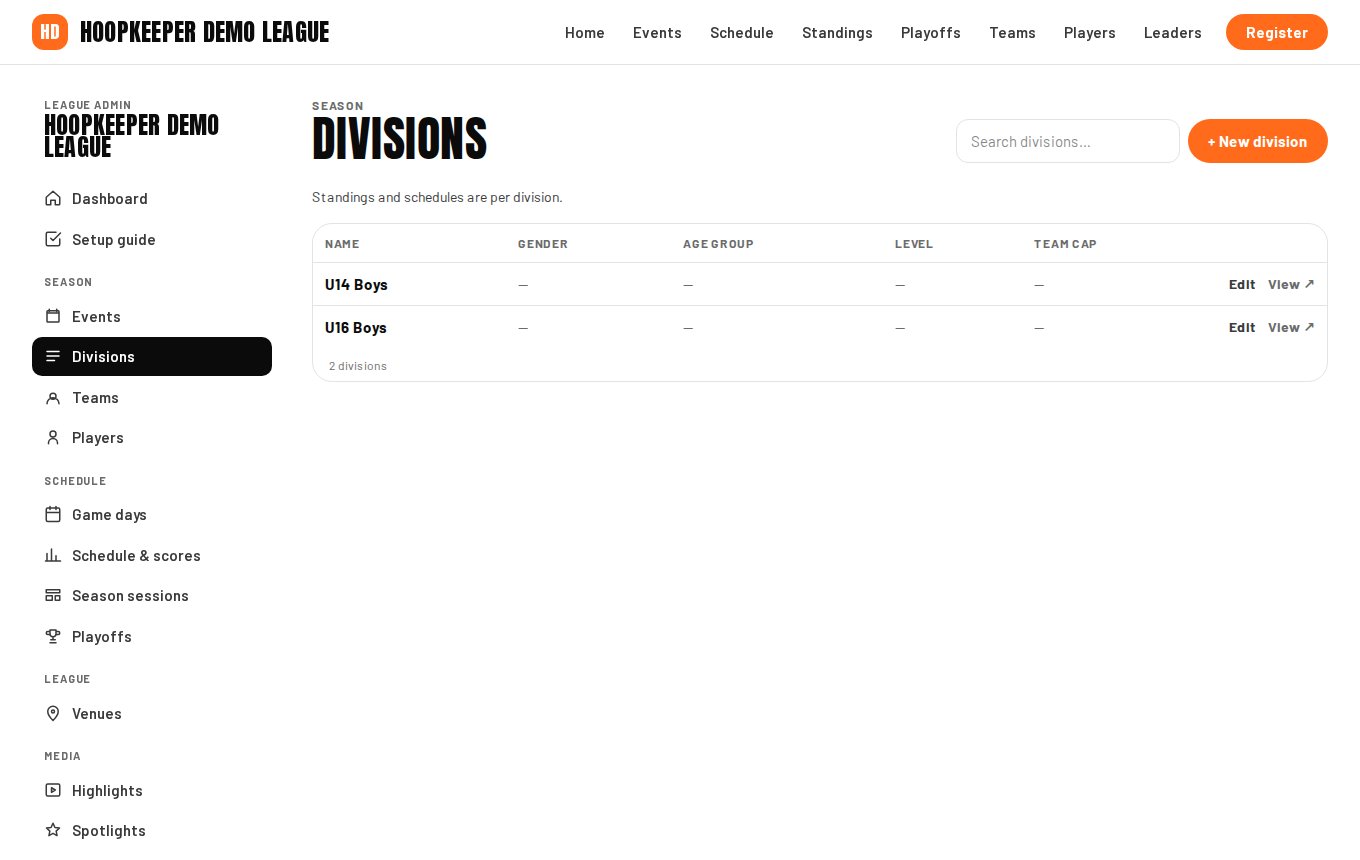
- Go to Manage › Divisions and press + New division.
- Enter the Name. Short and specific works best: "U15 Boys", "Men's Open", "35+ Co-ed".
- Set Gender (Men, Women, Boys, Girls or Co-ed), Age group, Grade range and Level as they apply. They show as pills on the public pages and help parents find the right division.
- Team cap limits how many teams can register into the division; teams past the cap join the waitlist.
- Fee override charges this division a different team fee from the event's.
- Notes are internal.
Teams
- Go to Manage › Teams and press + New team.
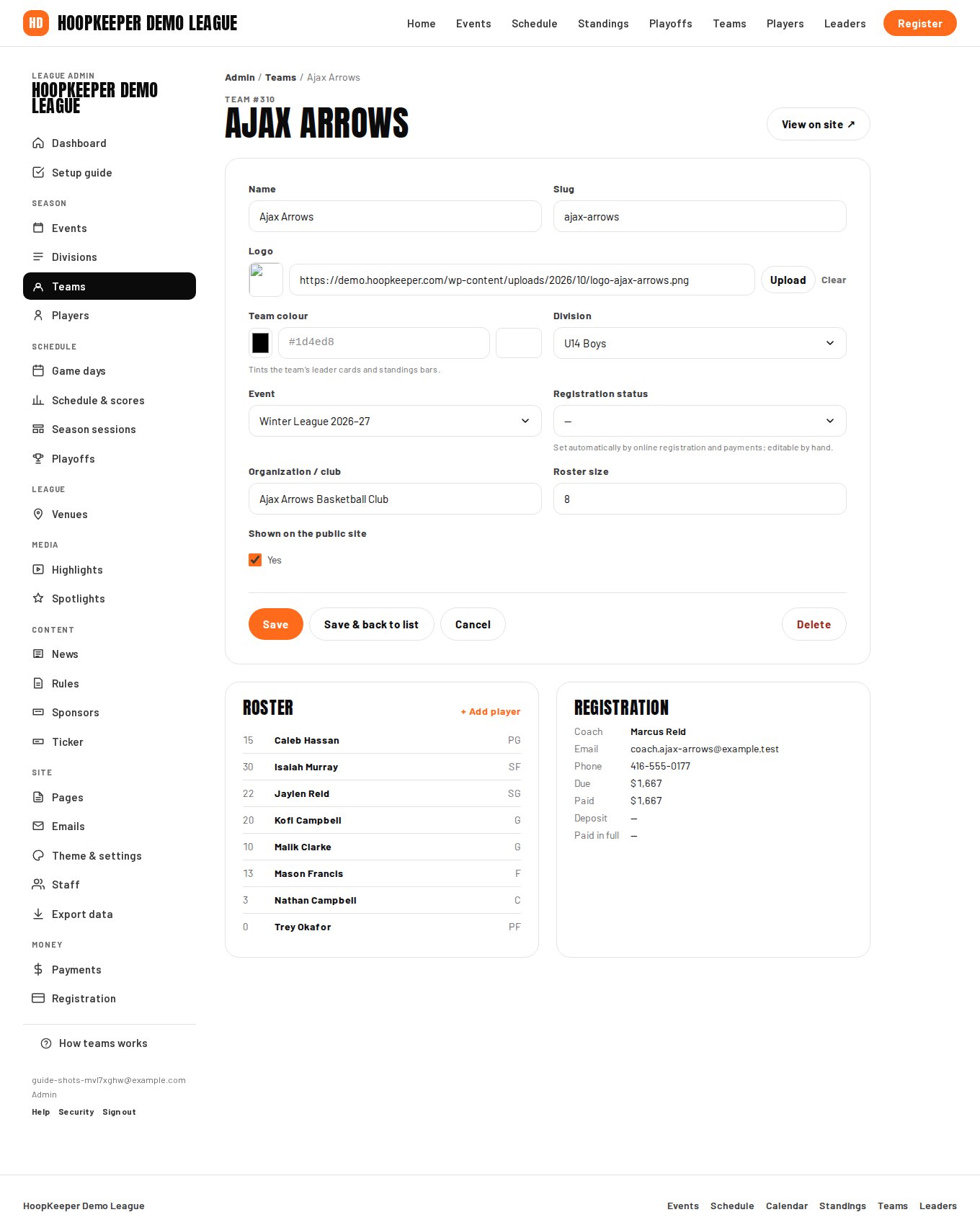
- Enter the Name, pick the Division and the Event.
- Upload a Logo (a square PNG with a transparent background looks best) and pick the Team colour. The colour tints the team's leader cards and standings bars, so choose something that reads on white.
- Registration status is set automatically by online registration and payments (submitted, awaiting payment, approved, waitlisted, declined, withdrawn, paid). You can set it by hand for teams you add yourself.
- Organization / club and Roster size are optional details for the team page.
- Tick Shown on the public site when the team is confirmed.
Open a team from the list to see its Roster panel and its Registration panel, which shows the coach's details and payments once the team registered online.
Players
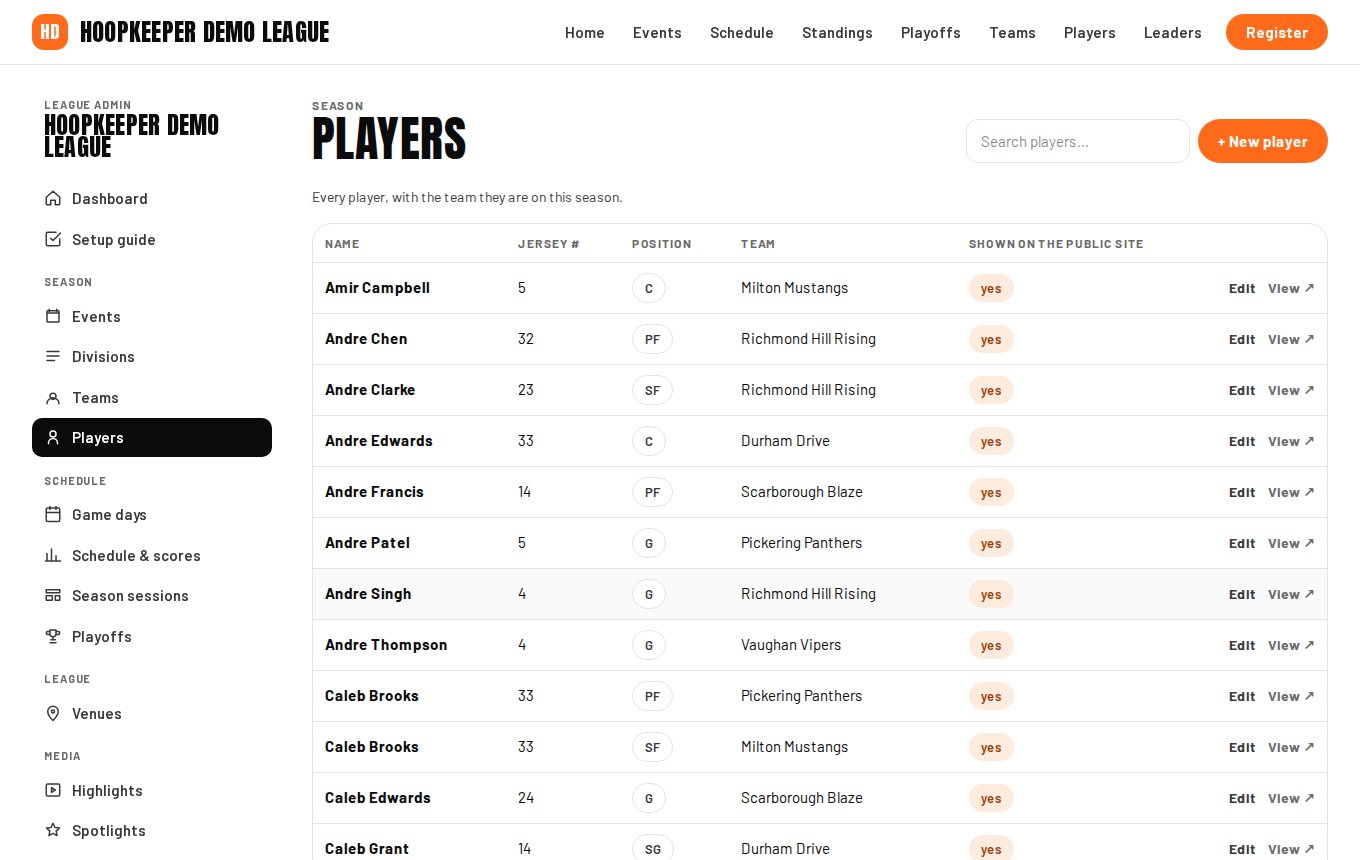
- Go to Manage › Players and press + New player, or open a team and add players from its roster panel.
- Enter the Name and pick the Team.
- Add the Jersey #, Position (PG, SG, SF, PF, C, G or F), Height, Grade / year and Hometown as you have them. All of it shows on the player page.
- Upload a Headshot. Square photos with the face centred are cropped to a circle on the leaders board.
- Bio is a paragraph for the player page.
- Tick Shown on the public site.
A player must be on a team's roster to appear on the score sheet, so finish rosters before the first game day.
Searching, editing and deleting
Every list has a search box. Open a row to edit it; Delete at the bottom of the form removes the record after a confirmation. Deleting a team does not delete its games: those games keep their score with the team slot left empty, so move a team's players and reassign its games first if a team is replaced mid-season.
Moving a team between seasons
Teams are tied to an event. For a new season, create the new event and add this season's teams to it; last season's teams stay with their event, so old standings and stats keep working. Returning players can be created again on the new team.
Questions
Do I have to add teams by hand?
No. When an event has a team fee and Stripe is connected, coaches register online and the team record is created for them with the coach's details attached. You still add the players yourself, or ask the coach for the roster.
What does Shown on the public site do?
An unpublished team or player stays out of the schedule, standings, rosters and leaders until you tick it. Use it for a team that has not paid yet, or a player who has not confirmed.
Can a player be on two teams?
A player record belongs to one team at a time. A player who plays in two divisions needs a record on each team; their stats stay separate, which is what the standings and leaders expect.
Try it on a sample league
A seven-day test drive comes with a season already loaded, so you can follow this guide click for click.
Start a free test drive