Getting started with HoopKeeper
Your first sign-in, the league dashboard, the nine-step setup guide and what each staff role can do.
Updated · In the admin: Dashboard, Setup guide
When a league is launched on HoopKeeper, the owner gets an email with a sign-in link to the league's admin. The admin lives at /manage on your league's address, for example yourleague.hoopkeeper.app/manage, and the first visit opens the setup guide. This guide walks through that first visit and the screens you will use every week.
Sign in
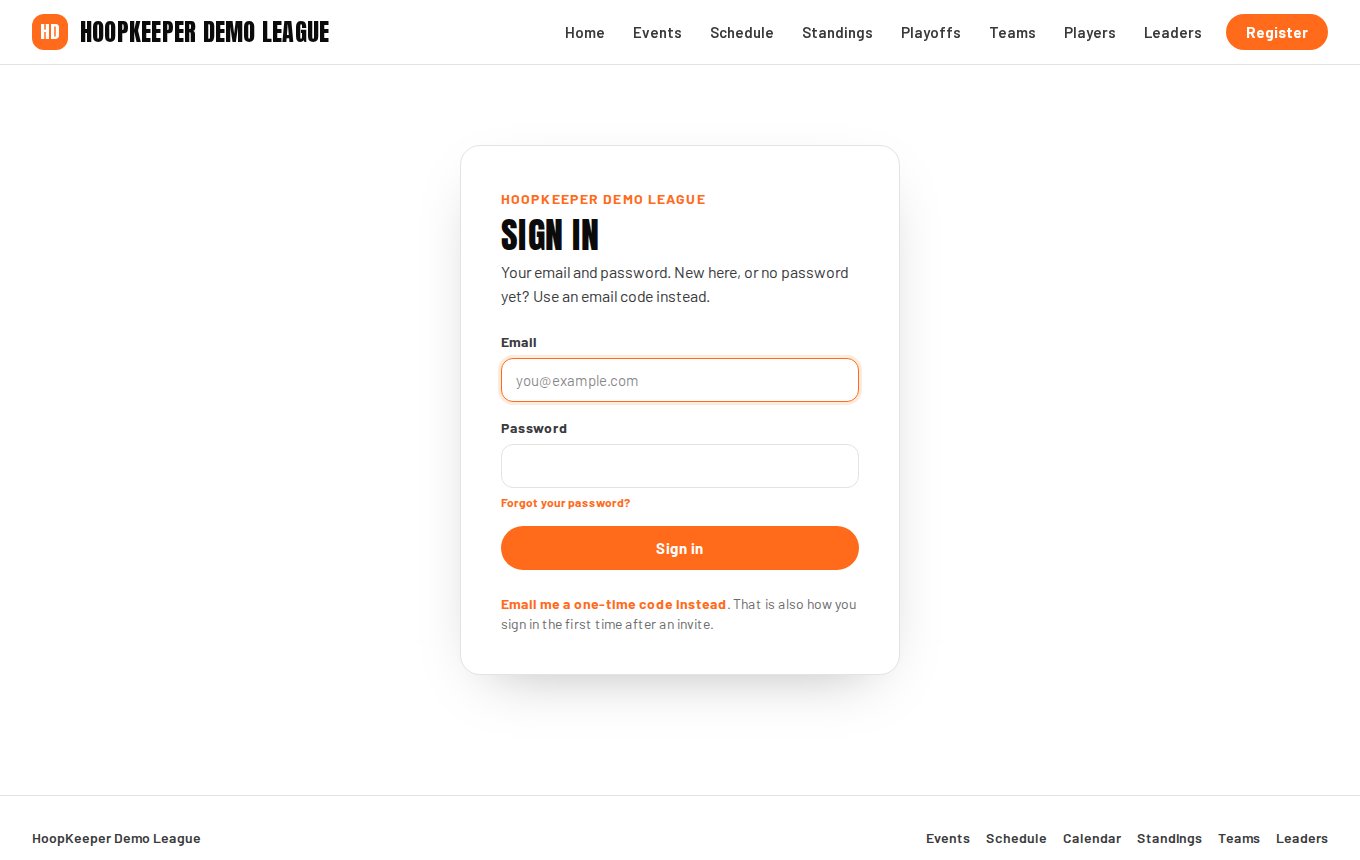
- Open the sign-in link from your welcome email, or go to /sign-in on your league site and enter your email.
- HoopKeeper emails you a six-digit code and a one-tap link. Either one signs you in; the link must be opened in the same browser that asked for it.
- On the first sign-in you are offered a password. It is optional: the email code always works.
- Owners and admins should turn on two-step verification under Your account › Security. A league can also require it for all staff (see the staff guide).
The dashboard
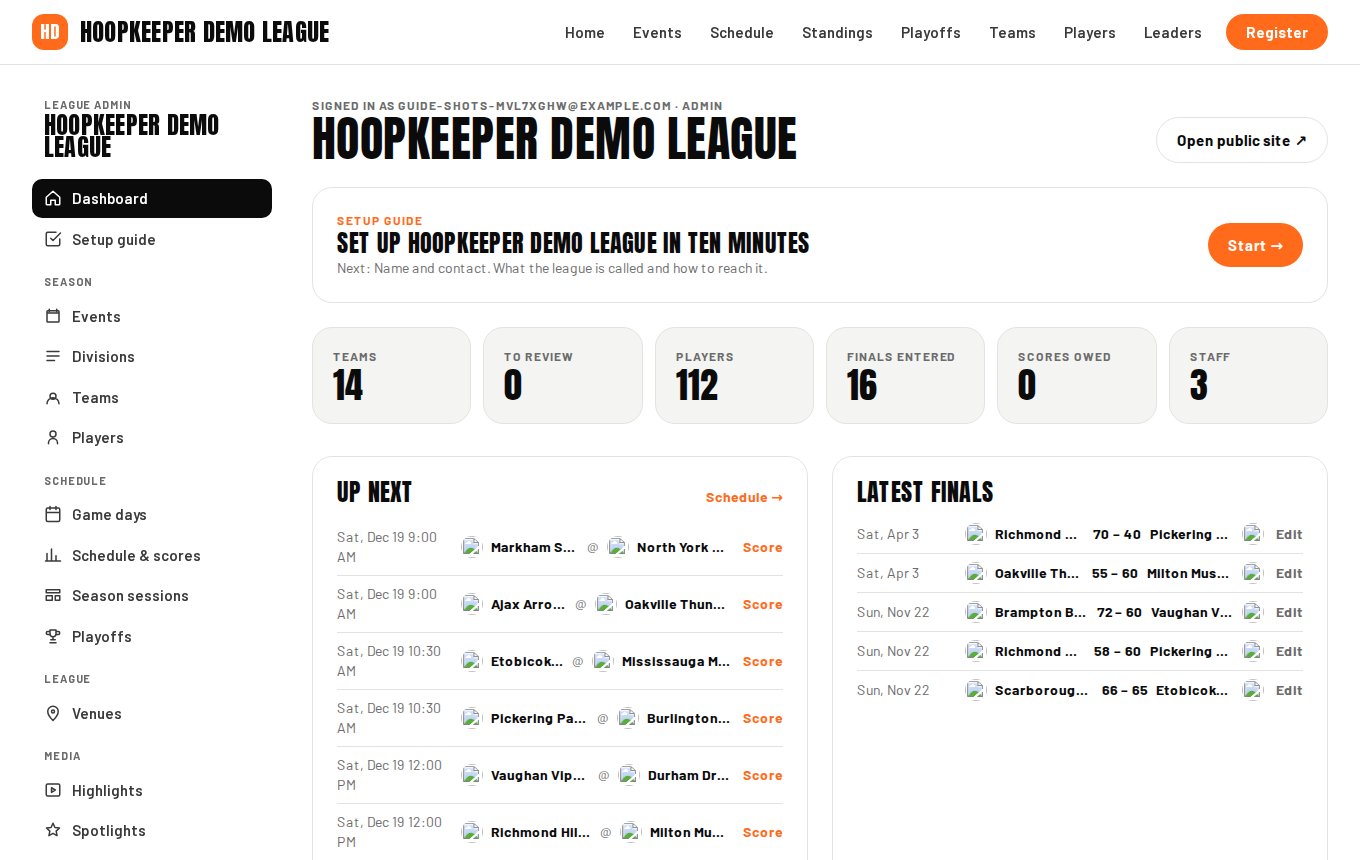
The dashboard is the home of the admin. It shows the numbers you check most, with each tile linking to its screen:
- Teams and To review: how many teams are in the season and how many registrations are waiting for a decision.
- Players on published rosters.
- Finals entered and Scores owed: games with a final score, and past games that still have none.
- Staff: the people with admin access.
- Up next: the next game days and games on the schedule.
- Latest finals: the most recent results, each linking to its score sheet.
The left-hand menu is grouped the way a season runs: Season (events, divisions, teams, players), Schedule (game days, schedule and scores, season sessions, playoffs), League (venues), Media, Content, Site and Money. Each screen has a How this works link under the menu that opens its guide here.
The setup guide
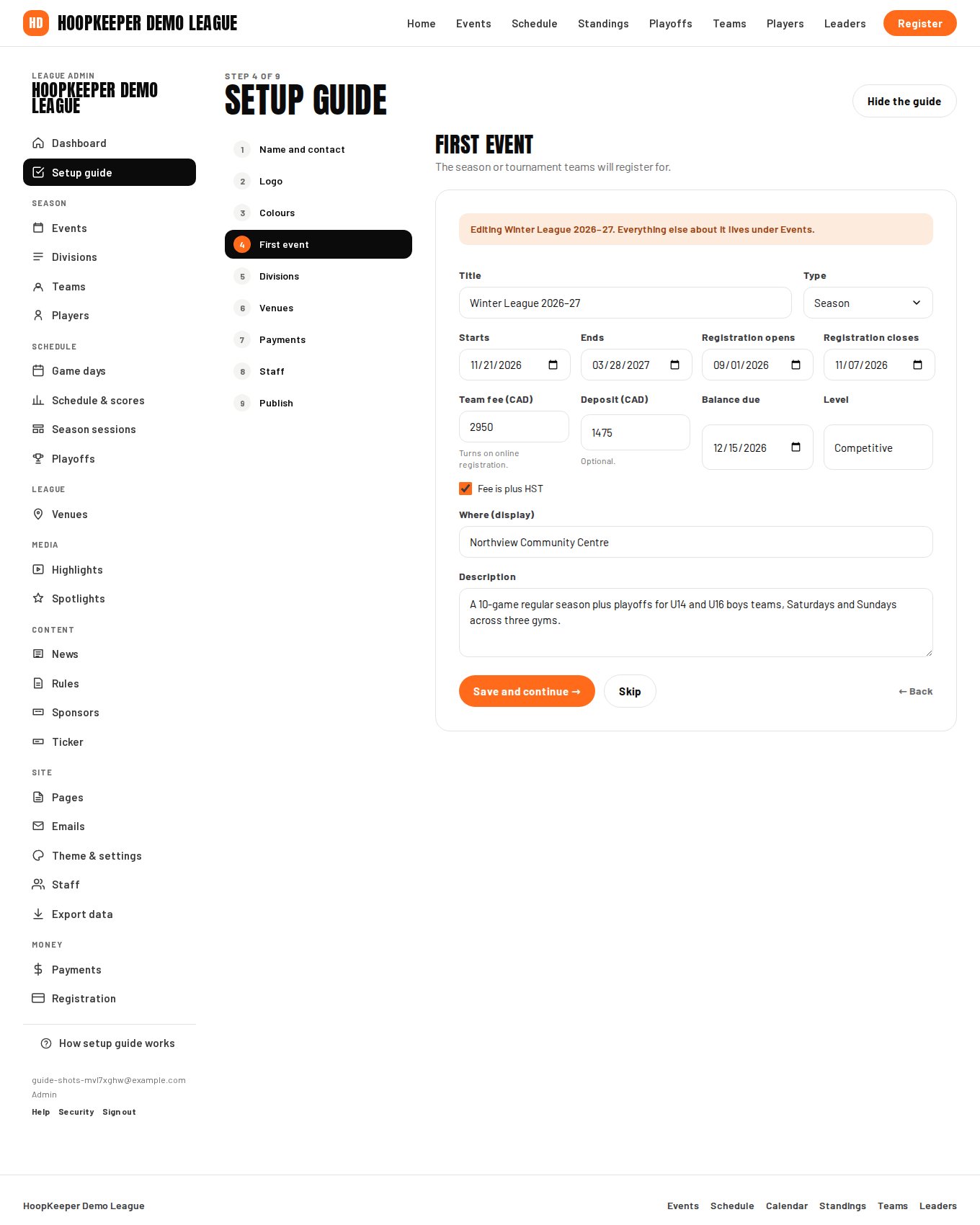
A new league opens on the setup guide at Manage › Setup guide. It is nine short forms, each with Save and continue and a Skip option, and you can come back to any step from the list on the left.
- Name and contact: league name, tagline, contact email, Instagram and Facebook links, footer text.
- Logo: a PNG or SVG with a transparent background. Without one the site shows the league's initials.
- Colours: the accent colour (buttons, pills, highlights) and the dark colour (headings and dark surfaces). Pick the accent from your logo and keep the dark colour close to black.
- First event: the season or tournament teams will register for, with dates, the registration window, the team fee and an optional deposit.
- Divisions: one per line. Age and gender are read from the name, so "U15 Boys" or "35+ Co-ed" fill those fields for you.
- Venues: where games are played, with an address so the public site can show directions.
- Payments: connect Stripe so teams can pay online. Only the owner sees this step; it can be saved for later.
- Staff: invite a co-admin and your scorekeepers by email.
- Publish: remove the sample season and open the site to the public. Until the site is published, only signed-in staff can see the public pages.
Press Hide the guide when you are done with it. The dashboard shows a reminder card until every step is done or hidden.
Who can do what
HoopKeeper has five staff roles. The Staff screen under Site is where you add people; the staff guide covers it in detail.
| Role | Can do |
|---|---|
| Owner | Everything, including billing, Stripe and adding other owners |
| Admin | Everything except billing and adding owners |
| Scorekeeper | Game days, the schedule and score sheets only |
| Coach | Read-only access to the admin dashboard |
| Viewer | Can see an unpublished site |
A season in order
Most leagues follow the same path through the admin. Each step has its own guide:
- Set up the league site: name, logo, colours, domain.
- Create the season or tournament as an event.
- Add divisions, then teams and their rosters, or let teams register online.
- Add venues.
- Build the schedule with game days and the round-robin builder.
- Enter scores on the score sheet after every game day.
- Run the playoffs from the standings.
- Export a backup at the end of the season.
Questions
Do I need a password?
No. Staff sign in with a code or link sent to their email. You can add a password under Your account › Security if you prefer typing one, and owners and admins can turn on two-step verification with an authenticator app.
Can I change something the setup guide saved?
Yes. Every step writes to the same records as the admin screens, so the league name, logo, colours, event, divisions and venues can all be edited later under Theme & settings, Events, Divisions and Venues.
What is the sample season?
A league launched with starter content comes with a sample event, teams, players and games so every screen has something in it. The Publish step of the setup guide deletes the sample rows and keeps everything you added yourself.
Try it on a sample league
A seven-day test drive comes with a season already loaded, so you can follow this guide click for click.
Start a free test drive