News, the ticker and sponsors
Post news with images and scheduled dates, pin a message to the scrolling ticker, and show sponsor logos on the home page and the schedule.
Updated · In the admin: News, Ticker, Sponsors
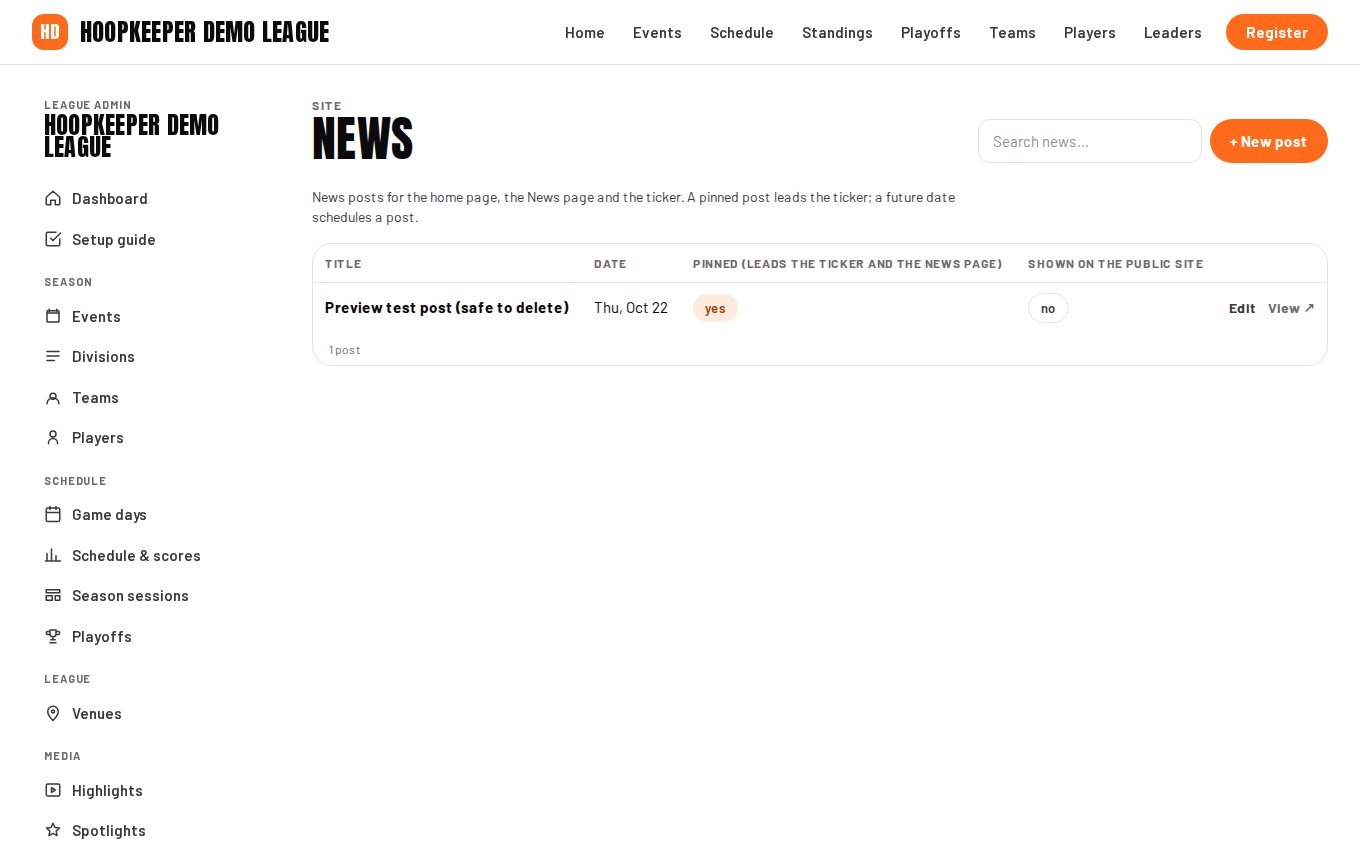
Three screens under Content keep the public site current between game days: News for posts, Ticker for the pinned message and the sponsor heading, and Sponsors for the logo strip.
Post news
- Go to Manage › News and press + New post.
- Enter the Title. The Slug becomes the URL under /news/; leave it empty to make one from the title.
- Date: leave empty for today. A future date schedules the post to appear on that day.
- Summary: one or two sentences for the cards and the ticker. Leave it empty to use the first paragraph.
- Article: paragraphs, with bold, italic, links and dashed lists.
- Upload an Image for the card and the top of the article.
- Link instead of an article makes the card open another address instead of the article page.
- Pinned puts the post first in the ticker and at the top of the News page.
- Tick Shown on the public site and save.
The home page shows the newest post large with two more beside it; the News page lists them all, pinned first.
The ticker
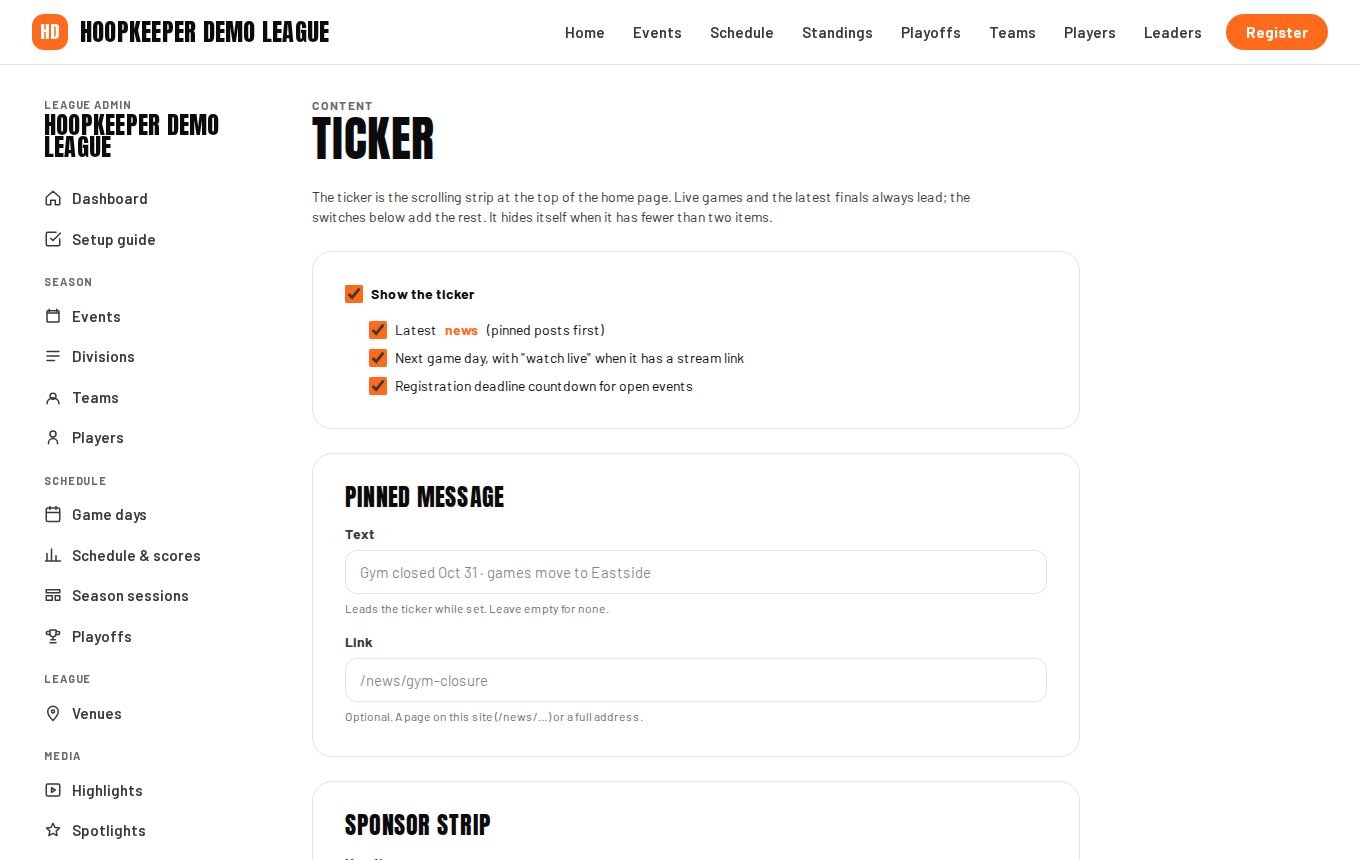
Manage › Ticker has two settings:
- Pinned message and its Link: a line that leads the ticker while it is set, for a snow day, a registration deadline or a reminder that the gym door has moved. The link can be a page on your site, such as /news/your-post, or a full address. Leave the text empty to clear it.
- Sponsor strip heading: the words over the logos on the home page and the schedule. Default: Our partners.
Everything else in the ticker is automatic: live games, the latest finals, upcoming games, news, the next game day and the registration deadline.
Sponsors
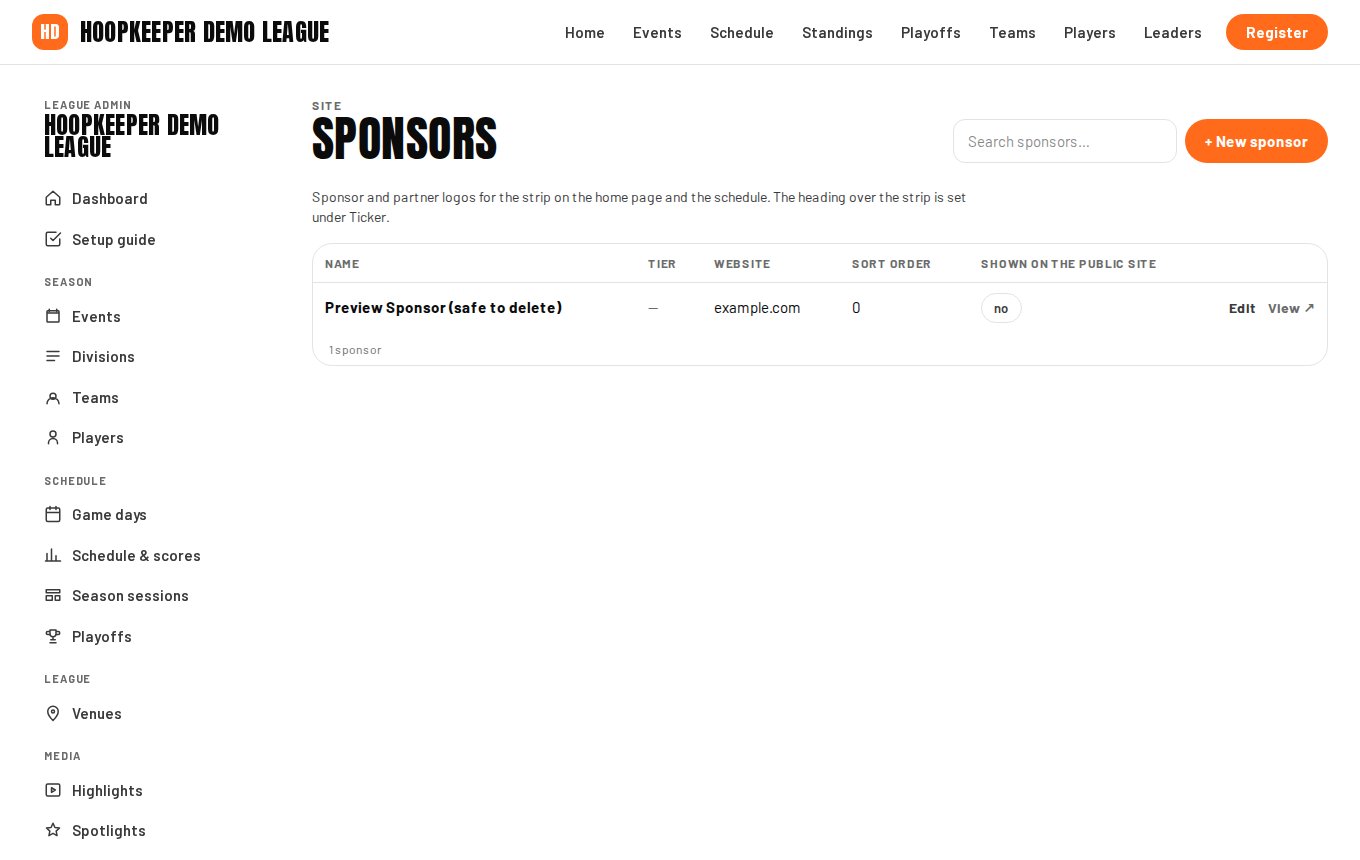
- Go to Manage › Sponsors and press + New sponsor.
- Enter the Name, a Tier such as Presenting, Gold or Partner, and the sponsor's Website.
- Upload a Logo: a PNG or SVG with a transparent background. It is shown about 48 pixels tall, so a wide, simple logo reads best.
- Sort order puts the presenting sponsor first (lower first).
- Tick Shown on the public site.
Published sponsors appear in a strip on the home page and on the schedule, each logo linking to the sponsor's site. A sponsor without a logo is shown by name.
Questions
What goes in the ticker?
The ticker is the scrolling strip under the header. It shows live games first, then your pinned message, the latest finals, what is up next, news, the next game day and the registration deadline. You control the pinned message and the news; the rest comes from the schedule.
Can a post link somewhere else instead of opening an article?
Yes. Fill in Link instead of an article and the news card and the ticker open that address, for example a photo album or a sign-up form on another site.
Try it on a sample league
A seven-day test drive comes with a season already loaded, so you can follow this guide click for click.
Start a free test drive