Staff and roles
Add admins, scorekeepers, coaches and viewers, understand what each role can do, change or remove access, and require two-step verification.
Updated · In the admin: Staff
Everyone who signs in to the admin is a staff member with a role. Manage › Staff is where owners and admins add people, change roles and remove access.
Roles
| Role | Can do |
|---|---|
| Owner | Everything, including Stripe, billing and adding other owners |
| Admin | Everything except billing and adding owners |
| Scorekeeper | Game days, the schedule and score sheets |
| Coach | Read-only access to the admin dashboard |
| Viewer | Can see an unpublished site |
Give scorekeepers the scorekeeper role rather than admin: they see only the three screens they need, and they cannot change teams, pages or payments by accident.
Add someone
- Under Add staff, enter their Email and pick a Role.
- Press add. They get a Staff added email with a sign-in link.
- They sign in with their email (a code or a link) and are added with that role on the first sign-in. Nothing to share: no password, no invite code.
- Until they sign in, they are listed under Waiting to sign in, where Revoke cancels the invite.
Only an owner can add another owner.
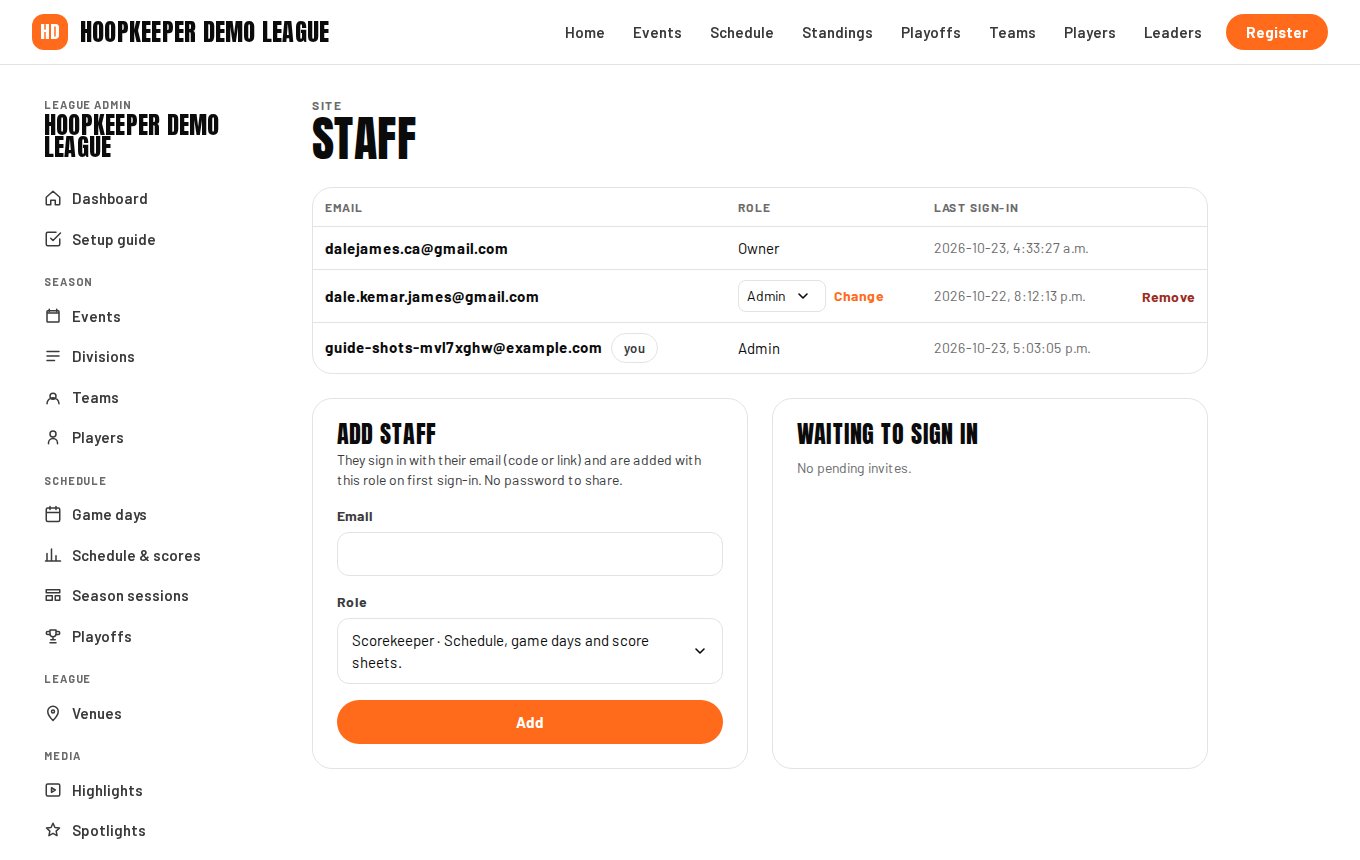
Change a role or remove someone
The staff list shows each person's email, role and last sign-in. Change switches their role; Remove takes away their access at once. Keep at least two owners so a lost phone or a holiday never locks the league out.
Two-step verification
Every staff member can turn on two-step verification under Your account › Security: a code from an authenticator app on top of the email sign-in, with backup codes for a lost phone. Recommended for owners and admins.
To make it mandatory, tick Require two-step verification for owners and admins under Theme & settings. Owners and admins without an authenticator are sent to set one up before the admin opens.
Your own account
Your account › Security shows who you are signed in as, lets you set or change a password, and manages the authenticator. Sign out is at the bottom of the admin menu.
Questions
Does a new staff member need a password?
No. They sign in with a code or link sent to their email and are added with their role on the first sign-in. They can set a password afterwards under Your account › Security if they like.
Can a coach edit their own roster?
Not yet. The coach role is read-only access to the admin dashboard. Rosters are edited by owners and admins; roster tools for coaches are planned.
I lost my authenticator. How do I get in?
Sign in with one of the ten backup codes shown when two-step verification was set up; each one works once. Then remove the old authenticator under Your account › Security and set up a new one.
Try it on a sample league
A seven-day test drive comes with a season already loaded, so you can follow this guide click for click.
Start a free test drive